Every app.
One Tab away.
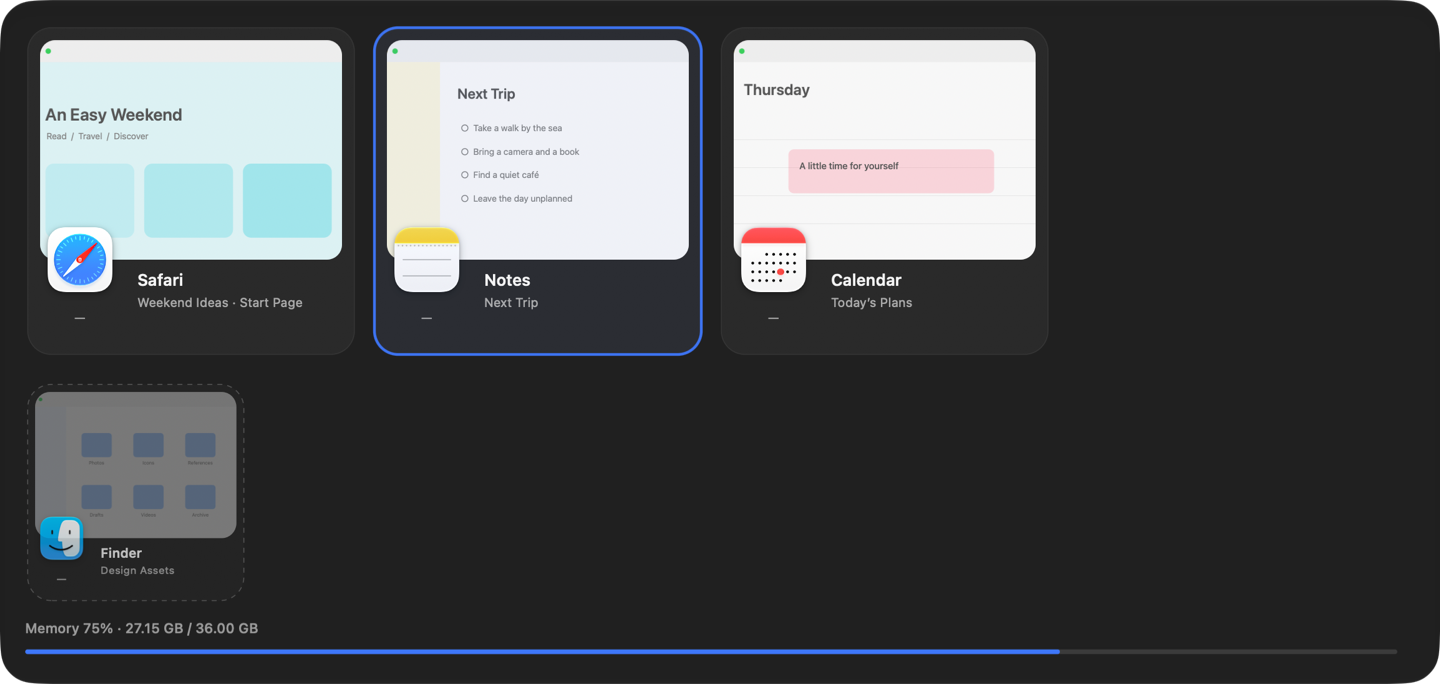
Hold Command and press Tab to see every app as a live preview — even minimized windows and apps you closed with Command W. Let go to switch.
Download freeVersion 0.3.0 · macOS 14+ · Apple silicon · Signed and notarized by Apple
Features
See it, then switch to it.
The built-in switcher shows icons. GlassTab shows what each app actually has open, so you pick the right one at a glance.
One card per app
Every app at a glance.
Each app in the Dock gets one live preview card. Its main window, viewers and tool panels are combined, so the list stays short and easy to scan.
Minimized and closed
Nothing left behind.
Minimized windows come back when you choose them. Apps still running after you close their last window with ⌘ W come forward with a window, just like a Dock click.
Keyboard or pointer
Tab, arrows, or a glance.
Keep pressing Tab or Shift-Tab, use the arrow keys between rows, or move the pointer over a card. Let go to switch, or click a card. Esc cancels.
Memory at a glance
See what each app uses.
Each card shows how much memory the app uses, and the bottom of the switcher shows your Mac’s memory in use. Turn it off any time.
15 languages
Speaks your language.
Follows your Mac’s language: English, Chinese, Japanese, Korean, German, French, Spanish, Portuguese, Italian, Dutch, Russian and Arabic, with right-to-left layout. Or choose one from the menu bar.
Private
Nothing saved. Nothing uploaded.
Previews are kept in memory only. No account, no network connection, nothing written to disk.
How it works
Install. Allow. Press Tab.
Drag to Applications
Open the disk image, drag GlassTab to Applications, then open it. It lives in the menu bar, not the Dock.
Allow two permissions
In the setup window, allow Accessibility (called Device Control and Data Access in the newest macOS) to switch windows, and Screen Recording for the previews.
Hold ⌘ and press Tab
Keep holding Command and press Tab to move, then let go to switch. Prefer Option + Tab? Choose it from the menu bar icon.
Requires macOS 14 or later on an Apple silicon Mac. While GlassTab runs with Command + Tab, it replaces the macOS app switcher; choose Option + Tab to keep both. A few apps that don’t expose standard accessibility windows may not be listed.
Questions and answers
Is GlassTab free?
Yes. It is free to download and use, with no in-app purchases and no account.
Why does it need Accessibility and Screen Recording?
Accessibility lets it read the window list, receive the shortcut and bring a window forward. Screen Recording is only for the thumbnails, which stay in memory. Without Screen Recording you can still switch, just without previews.
Does it replace the macOS Command-Tab switcher?
While it runs with the default Command + Tab, yes. Choose Option + Tab in the menu bar menu to keep the system switcher, or quit GlassTab to get it back.
Which Macs are supported?
macOS 14 or later on Apple silicon Macs. Intel Macs are not supported at this time.
What happens to an app I closed with Command W?
If it is still running, it appears next to the minimized windows. Choose it and macOS reopens it the same way a Dock click does, so its window appears again.
Which languages does GlassTab support?
English, Simplified and Traditional Chinese, Japanese, Korean, German, French, Spanish (Spain and Latin America), Portuguese (Brazil and Portugal), Italian, Dutch, Russian and Arabic. It follows your Mac’s language and falls back to English; you can also choose one from the menu bar.